
Set up autopay on Kinside to make your monthly tuition payments.
Set up a new recurring payment
- To get started, log into your Kinside account. Find your child care provider's profile page and click the Pay provider button.
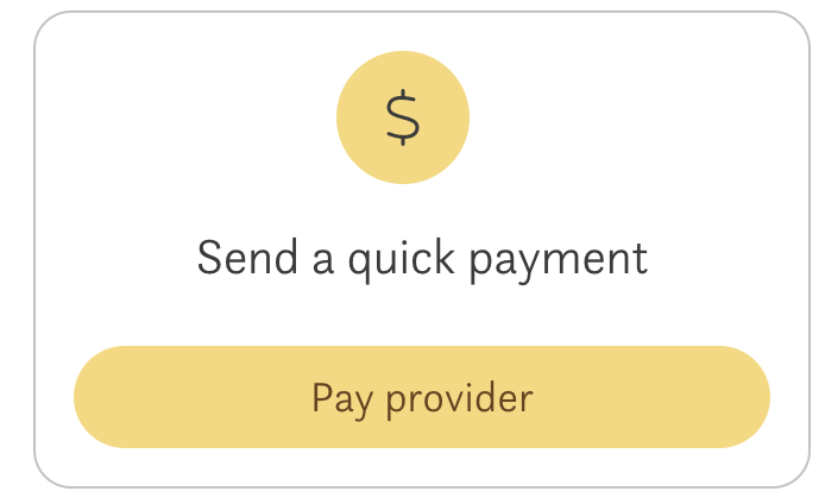
- The Send a Payment window will pop up. Enter the amount you'd like to pay, indicate what this payment is for, and check the box next to Make this a recurring payment.
- Once you've indicated that this is a recurring payment, you can set up your schedule details, like the payment frequency and when you want to send the last payment.
You'll need to indicate:- How often you'll send payment. Options are monthly, weekly, or every two weeks.
- What day/date your payment should be sent.
- For monthly payments, you'll choose a date to send payment*
- For weekly or bi-weekly payments, you'll choose a weekday that your payments are sent.
- What date your first payment should be sent.
- What date your last payment should be sent.
*If your payment is scheduled for the 29th-31st, it will be processed on the last day of the month when the month doesn't extend to the 31st.
Note: If your scheduled payment falls on a weekend or holiday, the payment will be processed the following business day.
- You then can select or add your payment method.
Note: Payments by debit/credit (including DC FSA debit cards) will incur a 3% processing fee. Payments via bank account (ACH) are fee-free. - Once you've selected your payment method, click "Continue" to proceed with your payments.
- Review the details of your payment. If you need to modify any information, click Change payment info. In this pop-up, it's recommended that you add a message for the provider noting what the payment is for.
Keep in mind that payments reach the provider 3-5 days after they are processed. We recommend scheduling your payments in advance of the due date to ensure your payment is made on time.
Editing a recurring payment
- To edit a recurring payment, log into your Kinside account and click My Payments in the middle of the page.
- Click the gear icon to the right of the payment you would like to edit.
- In the pop-up, you can modify the payment amount, date of payment, number of payments, and payment method. Make sure to click Save changes when you've made the needed modifications.
Cancelling a recurring payment
- To cancel a recurring payment, log into your Kinside account and click My Programs. Click the gear icon next to the payment you'd like to cancel.
- Click "Cancel all payments" at the top of the pop-up.
- Verify that you understand that moving forward will cancel all remaining scheduled payments by checking the box. Click Save changes.
Interested in learning how to make a one-time payment? Learn how to do that here.
Looking for more? Reach out to Kinside Concierge for more assistance. Email us at concierge@kinside.com or use the chat window on the bottom right of the app to contact a Concierge from the hours of 8am-5pm PST.